

Steps (4 total)
Follow them in order. You can start over at any point.
Step 1
Tap “Sign up” in the header
Tap the “Sign up” button at the top right to open the sign-up screen.

The dokori header, with an orange “Sign up” button at the top right. Step 2
Choose how to sign up
On the sign-up screen, choose one of the following.
Sign up with Google or X
Tap a button to open that service’s authorization screen. Once you approve, you’re returned to dokori (no confirmation email needed).
Sign up with email
Enter your email and submit — we’ll send you a confirmation code. Type that code on this screen.
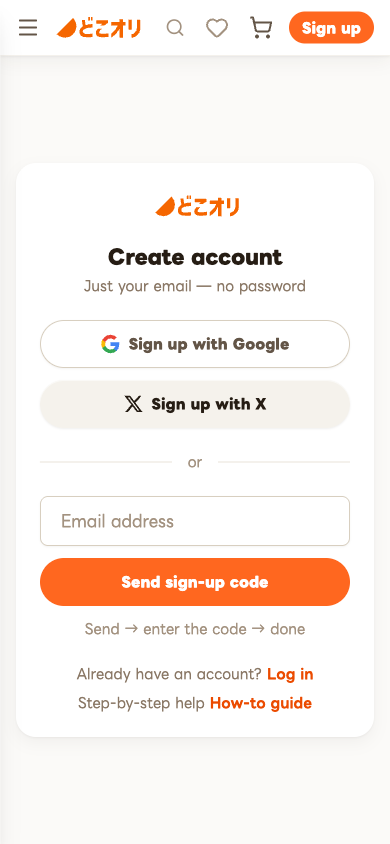
The dokori sign-up screen, with Google and X buttons and an email field. Step 3
Agree to the Terms & Privacy Policy (first time only)
The first time you sign up, a consent screen appears. Review the Terms of Service and Privacy Policy, then agree to continue.
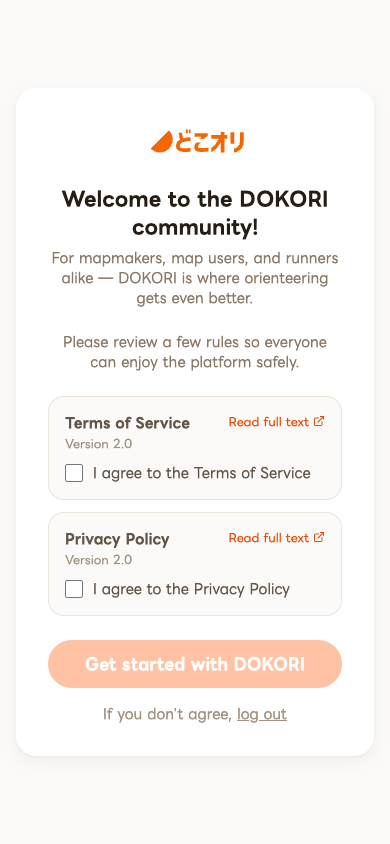
A screen asking you to agree to the Terms of Service and Privacy Policy. Step 4
Done
Your account is ready. You can now enter events, buy maps, and save favorites.
FAQ
If this doesn’t help, contact us using the link at the bottom.
The code email hasn’t arrived
The email usually arrives within 1–5 minutes. If it doesn’t, try: (1) check your spam folder, (2) verify the email address you entered, (3) resend the code.
Entering the code doesn’t do anything
Confirmation codes expire (about 60 minutes). If the code is wrong or has expired, resend it from the sign-up screen and enter the new code.